> For the complete documentation index, see [llms.txt](https://alhena.gitbook.io/docs/llms.txt). Markdown versions of documentation pages are available by appending `.md` to page URLs; this page is available as [Markdown](https://alhena.gitbook.io/docs/integrations/helpdesk/integrating-alhena-with-gorgias.md).
# Gorgias
Integrate Alhena with Gorgias to enable AI-powered support with seamless handoff to your existing workflow.
## Prerequisites
* A Gorgias account with admin access
* Your Gorgias domain, username, and API key
## Setup
### Step 1: Enable Gorgias in Alhena
1. In Alhena, go to **Settings > Integrations**
2. Find **Gorgias** and click **Enable**
3. Click **Configure Settings**
### Step 2: Get Your Gorgias API Credentials
1. In Gorgias, go to **Settings > REST API**
2. Copy your domain, username, and API key
### Step 3: Connect Gorgias
1. Paste your Gorgias domain, username, and API key into Alhena
2. Click **Connect**
You can now enable human transfer from the Alhena chat widget and choose a team in Gorgias where incoming tickets should be assigned.
***
## AI Response Options
Once Gorgias is connected, the **Gorgias AI Response Options** section lets you choose which channels Alhena responds on. Each is a card you enable independently:
* **Alhena Chat Widget** — let web chat users create Gorgias tickets.
* **Emails in Gorgias** — respond to Gorgias email tickets (see [Email Tickets](#email-tickets) below).
* **Instagram Direct Messages** — respond to Instagram DMs.
* **Facebook Messenger** — respond to Facebook Messenger conversations.
### Instagram & Facebook Messenger
To let Alhena respond to social messages routed through Gorgias, enable the **Instagram Direct Messages** and/or **Facebook Messenger** cards in the **Gorgias AI Response Options** section. These require your Instagram and Facebook channels to already be connected in Gorgias.
***
## Email Tickets
Alhena can automatically respond to email tickets in your Gorgias account. Enable the Email setting from the Gorgias settings page in Alhena.
Alhena only replies to tickets assigned to the "Alhena AI" agent. When human transfer is needed, tickets are assigned to your configured Human Transfer Group.
You can customize the signature and disclaimer added to AI email replies — click **Configure** on the **Emails in Gorgias** card. See [Email AI Settings](/docs/integrations/helpdesk/email-ai-settings.md).
### Setting Up an Automation Rule
To have Alhena automatically handle incoming emails, create a Gorgias rule that assigns new email tickets to the **Alhena AI** agent.
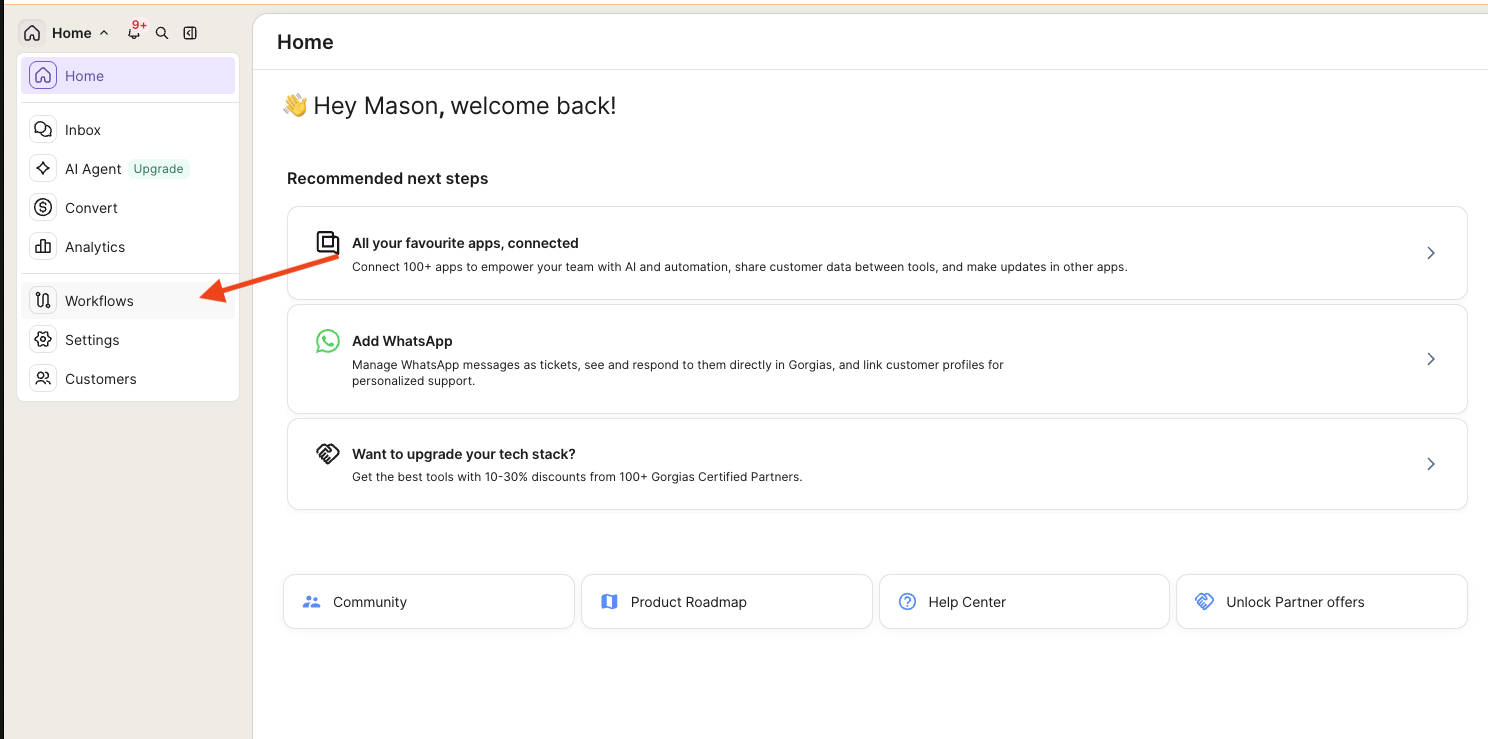
#### Step 1: Open Workflows
In Gorgias, click **Workflows** in the left sidebar.
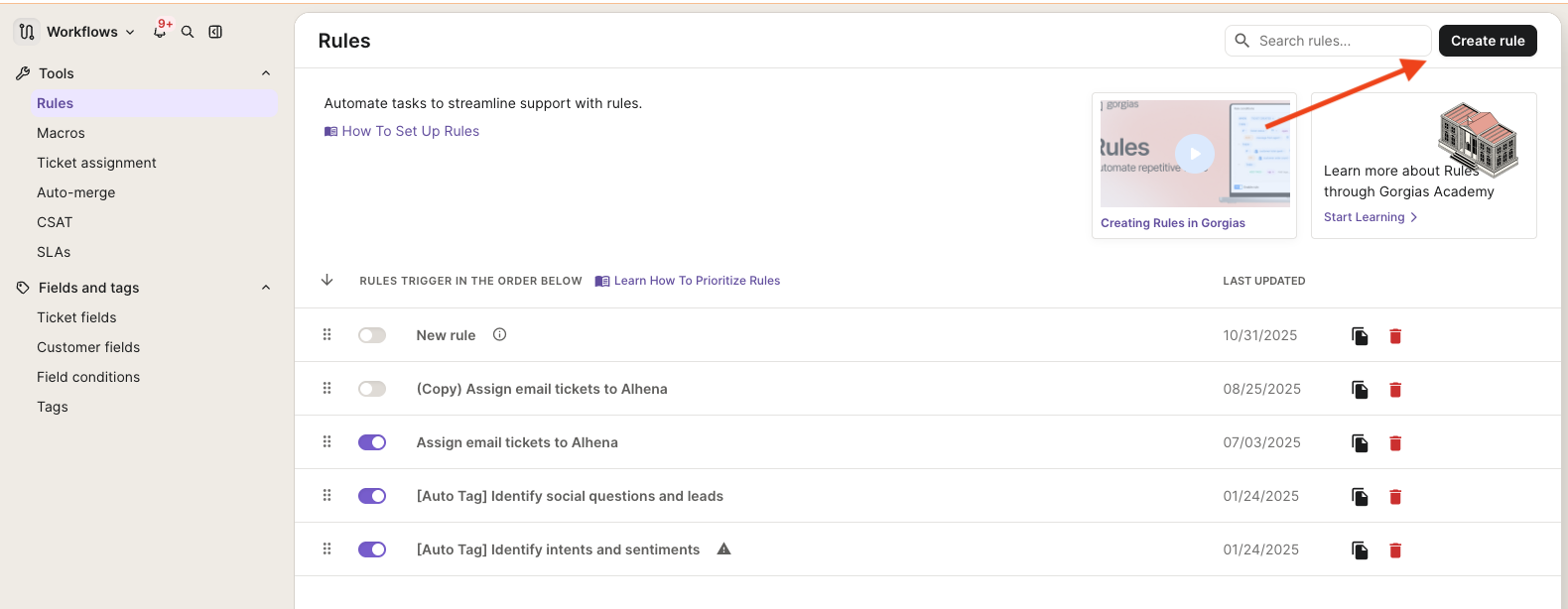
#### Step 2: Create a rule
Under **Tools > Rules**, click **Create rule** in the upper-right corner.
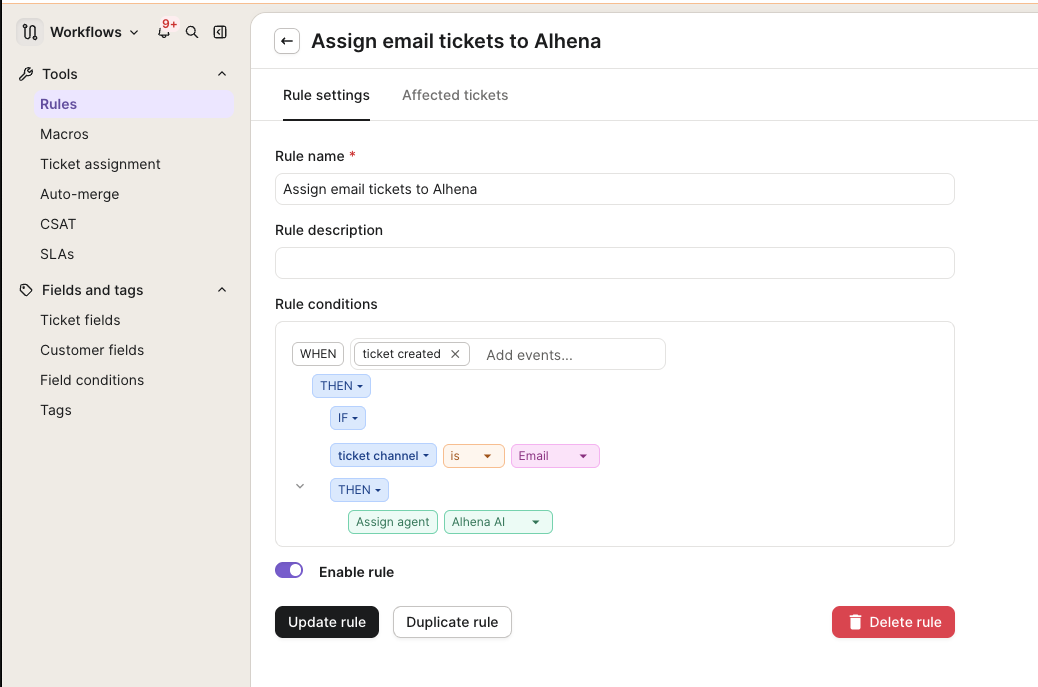
#### Step 3: Configure the rule
Set up the rule so that every new email ticket is assigned to Alhena:
1. **Rule name** — enter a descriptive name, such as `Assign email tickets to Alhena`.
2. **Rule conditions** — build the following logic:
* **WHEN** `ticket created`
* **IF** `ticket channel` `is` `Email`
* **THEN** `Assign agent` `Alhena AI`
3. Toggle **Enable rule** on.
4. Click **Update rule** (or **Save**) to activate it.
Once enabled, any new email ticket is assigned to the **Alhena AI** agent, and Alhena replies automatically. When human transfer is needed, the ticket is reassigned to your configured Human Transfer Group.
{% hint style="info" %}
Rules trigger in the order they appear on the Rules page. If you have other rules that assign or route tickets, make sure this rule's priority works alongside them so email tickets reach Alhena.
{% endhint %}