> For the complete documentation index, see [llms.txt](https://alhena.gitbook.io/docs/llms.txt). Markdown versions of documentation pages are available by appending `.md` to page URLs; this page is available as [Markdown](https://alhena.gitbook.io/docs/features/mcp.md).

# AI Assistants (MCP)

Connect your AI assistant to Alhena so you can query your conversations, analytics, AI visibility, A/B experiments, and AI configuration directly — in plain English, without opening the dashboard.

Alhena exposes an MCP (Model Context Protocol) endpoint that AI assistants connect to as a custom tool server. Once authorized, your assistant can search conversations, pull performance metrics, inspect experiment results, review AI guidelines, check how visible your brand is in AI answers, and more.

Supported assistants: **Claude** (claude.ai and Claude Code), **Codex**, and **ChatGPT**.

{% hint style="info" %}
**Want to give Alhena's AI agents access to external tools?** This page covers using an AI assistant to query Alhena. If you want to connect Alhena's own AI agents to external MCP servers, see [MCP Servers](/docs/integrations/custom-extensions/mcp-servers.md) instead.
{% endhint %}

## Prerequisites

* An active Alhena account
* One of the supported assistants:
  * A Claude account at [claude.ai](https://claude.ai), or [Claude Code](https://claude.ai/code) installed
  * [Codex](https://codex.com) installed
  * A [ChatGPT](https://chatgpt.com) account with **Developer mode** enabled (see setup below)

## Regions

Use the MCP URL that matches the region where your Alhena account is hosted:

| Region | MCP URL                         |
| ------ | ------------------------------- |
| US     | `https://app.alhena.ai/api/mcp` |
| EU     | `https://eu.alhena.ai/api/mcp`  |

If you are unsure which region you are on, check the URL you use to log in to Alhena. If it starts with `eu.alhena.ai`, use the EU endpoint; otherwise use the US endpoint.

## Setup

{% tabs %}
{% tab title="Claude.ai" %}

### Step 1: Add the custom connector

1. Go to [claude.ai/settings/connectors](https://claude.ai/settings/connectors)
2. Click **Add Custom Connector**
3. Fill in the details:
   * **Name:** Alhena (or your preferred name)
   * **MCP URL:** `https://app.alhena.ai/api/mcp` (US) or `https://eu.alhena.ai/api/mcp` (EU) — use the one matching your account's region
4. Click **Add**

### Step 2: Authorize access

1. On the connector screen, scroll to the bottom and click **Connect**
2. An OAuth authorization screen will appear — click **Allow Access** to grant Claude permission to read your Alhena data

### Step 3: Start using it

Open a new Claude chat and ask questions. Claude will automatically call Alhena when your question requires it.
{% endtab %}

{% tab title="Claude Code" %}

### Step 1: Add the MCP server

Run this command in your terminal, using the URL for your account's region:

**US**

```bash
claude mcp add --transport http alhena https://app.alhena.ai/api/mcp
```

**EU**

```bash
claude mcp add --transport http alhena https://eu.alhena.ai/api/mcp
```

### Step 2: Authorize access

Inside Claude Code, run:

```
/mcp
```

Claude Code will detect that Alhena requires OAuth and automatically open your browser to an authorization page. Click **Allow Access** to complete the flow. Tokens are stored securely and refreshed automatically.

### Step 3: Start using it

Ask questions in your Claude Code session. Claude will call Alhena automatically when your question requires it.
{% endtab %}

{% tab title="Codex" %}

### Step 1: Add the MCP server

Run this command in your terminal, using the URL for your account's region:

**US**

```bash
codex mcp add alhena --url https://app.alhena.ai/api/mcp
```

**EU**

```bash
codex mcp add alhena --url https://eu.alhena.ai/api/mcp
```

### Step 2: Authorize access

Log in to trigger the OAuth flow:

```bash
codex mcp login alhena
```

Codex will print an authorization URL. Open it in your browser and approve access on the consent screen.

### Step 3: Verify the connection

```bash
codex mcp list
```

You should see Alhena listed as enabled:

```
Name    Url                              Status   Auth
alhena  https://app.alhena.ai/api/mcp   enabled  OAuth
```

Restart Codex if the tools do not appear immediately.

### Step 4: Start using it

Inside Codex, run `/mcp` to inspect connected MCP servers and confirm Alhena is active. Then ask questions — Codex will call Alhena automatically when your question requires it.
{% endtab %}

{% tab title="ChatGPT" %}
{% hint style="warning" %}
ChatGPT treats Alhena as an unverified, custom connector, so you must turn on **Developer mode** before you can add it.
{% endhint %}

### Step 1: Enable Developer mode

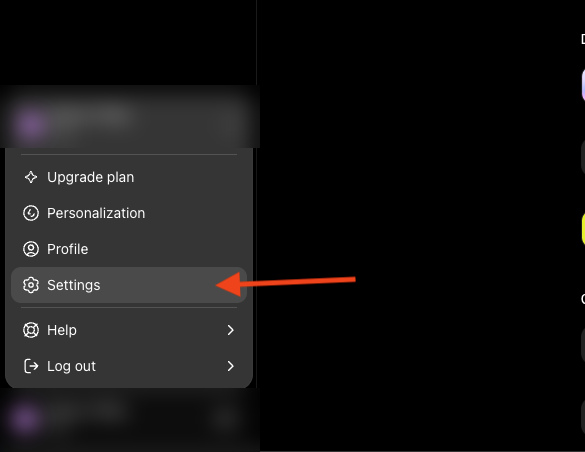
1. Click your profile icon and select **Settings**

<figure><img src="/files/qGNx4hEzxXdcnZKNfFh7" alt="" width="375"><figcaption><p><em>Profile menu → Settings.</em></p></figcaption></figure>

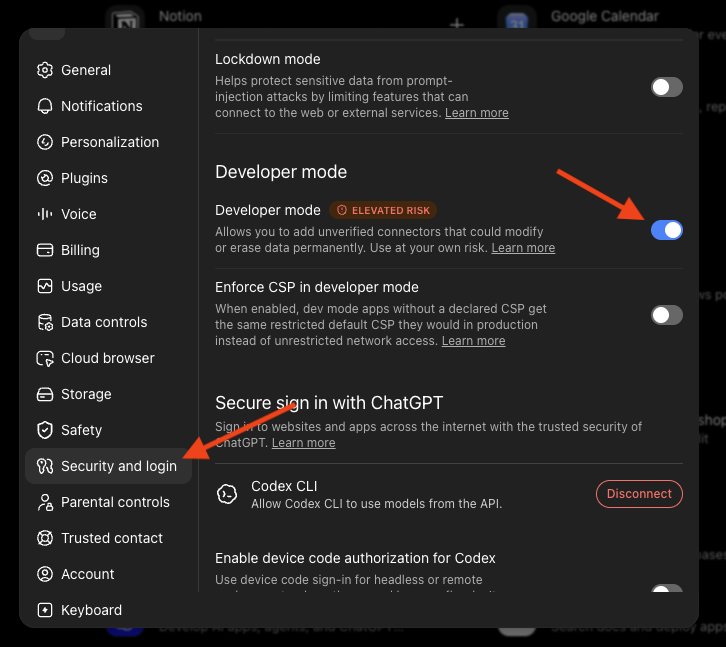
2. In Settings, go to **Security and login**
3. Under **Developer mode**, toggle it on. ChatGPT will flag this as elevated risk — this is expected, since it allows adding connectors like Alhena that OpenAI hasn't independently verified

<figure><img src="/files/Sh4tkmaAwhOPyLCdbe8Y" alt="" width="563"><figcaption><p><em>Security and login → enable Developer mode.</em></p></figcaption></figure>

### Step 2: Add the connector

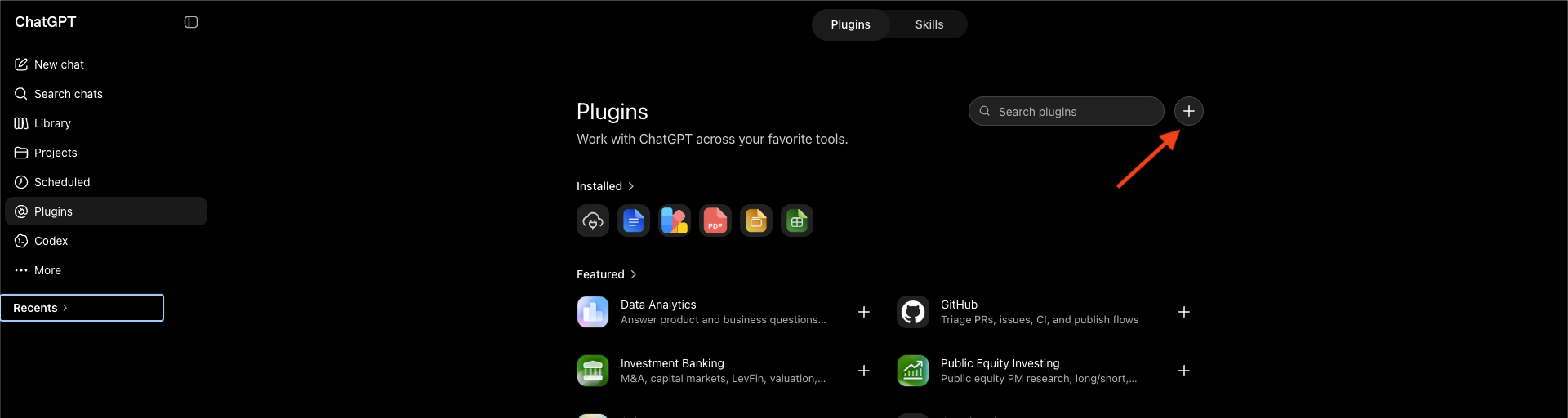
1. Go to **Settings > Connectors** (this may also appear as **Plugins**) and click the **+** button

<figure><img src="/files/yp95zLuqIwOxYdj8Zoi3" alt="" width="563"><figcaption><p><em>Connectors → add a new connector.</em></p></figcaption></figure>

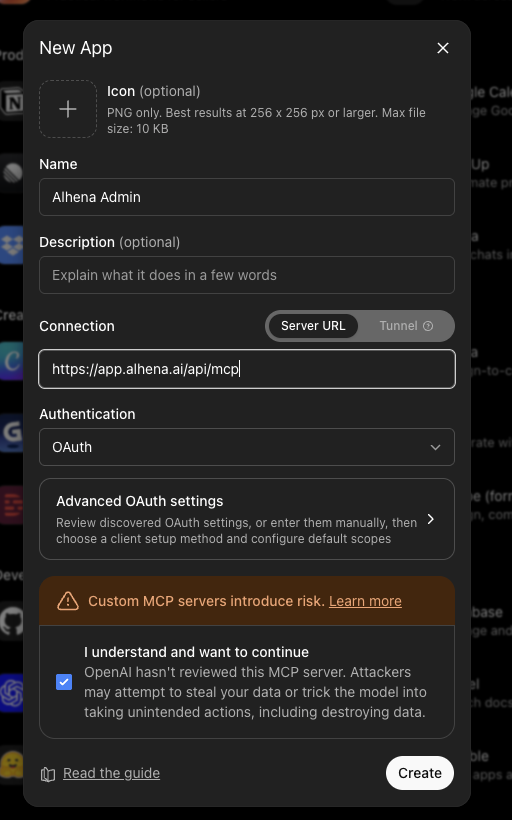
2. Fill in the New App details:
   * **Name:** Alhena (or your preferred name)
   * **Server URL:** `https://app.alhena.ai/api/mcp` (US) or `https://eu.alhena.ai/api/mcp` (EU) — use the one matching your account's region
   * **Authentication:** OAuth
   * Check **I understand and want to continue** to acknowledge the custom connector risk notice
3. Click **Create**

<figure><img src="/files/391XQVK1fWMltR7qVVrH" alt="" width="375"><figcaption><p><em>New App → enter the Alhena MCP URL and select OAuth.</em></p></figcaption></figure>

### Step 3: Authorize access

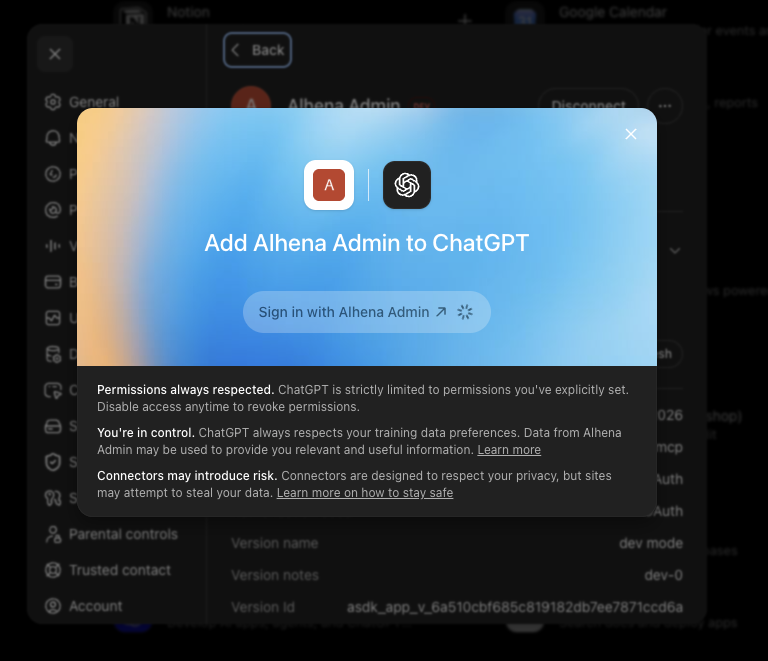
1. Click **Sign in with \[connector name]**

<figure><img src="/files/qwlT2bhUDI5sl3dLVBIH" alt="" width="375"><figcaption><p><em>Sign in to start the OAuth flow.</em></p></figcaption></figure>

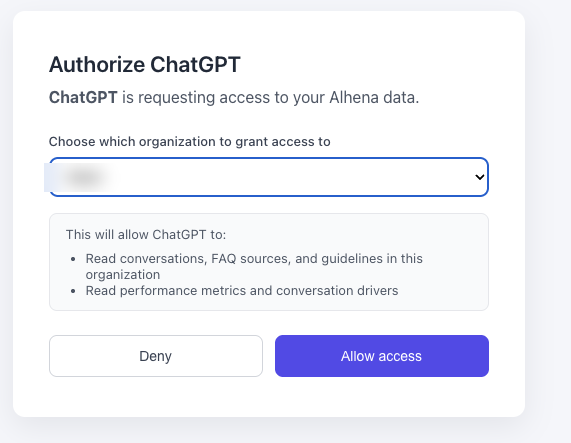
2. On the Alhena authorization screen, choose the organization to grant access to and click **Allow access**

<figure><img src="/files/7IQ61x3m41ZXjbcKhWqC" alt="" width="375"><figcaption><p><em>Choose an organization and allow access.</em></p></figcaption></figure>

### Step 4: Start using it

Open a new ChatGPT chat and ask questions. ChatGPT will call Alhena automatically when your question requires it.
{% endtab %}
{% endtabs %}

## What you can ask

### Conversations

* "Find conversations where customers complained about shipping"
* "Show me open escalated tickets from the past week"
* "Pull up conversation 48291"
* "Which conversations led to a purchase?"

### Performance metrics

* "How many AI vs human tickets did we have last month?"
* "What's our CSAT trend over the last 30 days?"
* "Show me ticket volume by day for the past two weeks"
* "How are we performing compared to the previous period?"

### A/B experiments

* "What experiments are currently running?"
* "Show me the results for experiment 12"
* "Is experiment 7 statistically significant?"

### AI configuration

* "What guidelines does my AI follow?"
* "Show me the guidelines for the answering agent"
* "Why did the AI give this answer in ticket 48291?"

### Conversation drivers

* "What are the top pages driving conversations this month?"
* "Which countries are our conversations coming from?"

### AI Visibility

If you use [AI Visibility](/docs/features/ai-visibility.md), your assistant can pull that data too — how your brand shows up in AI-generated answers, who outranks you, and where to improve.

* "How visible is my brand across AI search engines like ChatGPT and Google AI Overview this month?"
* "Where do I rank against competitors in AI answers, and what should I focus on this week?"
* "Which of our tracked prompts mention us, and which ones miss us in ChatGPT?"
* "What did ChatGPT actually say when someone asked 'best waterproof hiking boots' — and which products did it show?"
* "Which websites do AI engines cite in our space, and are we one of them?"
* "Who beats us in AI answers, and what pages are they cited on that we aren't?"
* "What behind-the-scenes searches do AI engines run where we don't rank?"

{% hint style="info" %}
AI Visibility questions only return data once you've set up AI Visibility in the dashboard and it has finished its first analysis.
{% endhint %}

## Troubleshooting

| Issue                                           | Solution                                                                                                                                 |
| ----------------------------------------------- | ---------------------------------------------------------------------------------------------------------------------------------------- |
| Connector fails to add (claude.ai)              | Double-check the MCP URL matches your region: `https://app.alhena.ai/api/mcp` (US) or `https://eu.alhena.ai/api/mcp` (EU)                |
| MCP server fails to add (Claude Code)           | Ensure you have Claude Code installed and run the command exactly as shown, using the correct regional URL                               |
| MCP server fails to add (Codex)                 | Ensure you have Codex installed and run the command exactly as shown, using the correct regional URL                                     |
| Can't find the connector option (ChatGPT)       | Enable **Developer mode** in Settings > Security and login first — connectors to unverified servers like Alhena are hidden until it's on |
| OAuth authorization fails                       | Make sure you are logged into the correct Alhena account in your browser before clicking Allow Access                                    |
| Browser doesn't open during OAuth (Claude Code) | Claude Code will display the authorization URL — copy it and open it manually                                                            |
| Claude doesn't use the connector                | Open a new chat — existing chats may not pick up newly added connectors                                                                  |
| ChatGPT doesn't use the connector               | Open a new chat, and make sure the connector is enabled for that chat                                                                    |
| Need to re-authorize (Claude Code)              | Run `/mcp` and select "Clear authentication", then reconnect                                                                             |
| Need to re-authorize (Codex)                    | Run `codex mcp login alhena` again to refresh the OAuth token                                                                            |
| No data returned                                | Confirm your Alhena account has data for the time period or resource you are asking about                                                |

## Related

* [Analytics](/docs/dashboard/analytics.md) — View performance data directly in the Alhena dashboard
* [AI Visibility](/docs/features/ai-visibility.md) — Track how your brand appears in AI-generated answers
* [A/B Testing](/docs/developer-reference/website-sdk/ab-testing.md) — Set up and manage experiments
* [MCP Servers](/docs/integrations/custom-extensions/mcp-servers.md) — Connect Alhena's AI agents to external MCP servers