> For the complete documentation index, see [llms.txt](https://alhena.gitbook.io/docs/llms.txt). Markdown versions of documentation pages are available by appending `.md` to page URLs; this page is available as [Markdown](https://alhena.gitbook.io/docs/features/chat-widget/nudges.md).

# AI Nudges

Nudges proactively engage website visitors and encourage them to start a conversation with the chat widget.

They are short prompts that you can configure to appear on any page of your website (home, product, content etc.) based on conditions you set - encouraging timely, relevant interactions with your chat widget.

### How Nudges Work

Nudges are contextual prompts that appear on your webpage to **encourage user interaction**.

**Benefits of Using Nudges**

* **Increased Engagement:** By prompting users at the right time, nudges significantly boost user interaction.
* **Targeted Communication:** Deliver personalized FAQs or context-aware prompts based on user behavior and page context.
* **Enhanced Experience:** With controlled and timely prompts, nudges improve the journey without being intrusive.

***

### Types of Nudges

#### 1. Standard Nudges

* Configured manually for any **page title** or **URL**.
* Triggered based on **urls, time delay**, **scroll depth**, or **custom SDK events**.
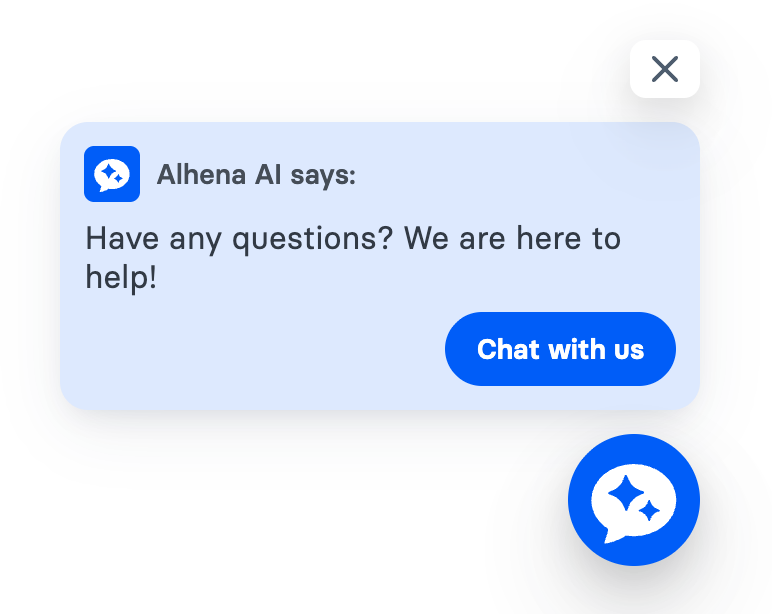
* Example: *“*&#x48;ave any questions? We are here to help!*”*

<figure><img src="/files/jz2dLkB45113TD2wLpp9" alt="" width="563"><figcaption><p>[Standard Nudge]</p></figcaption></figure>

***

#### 2. Product FAQs Nudges as notifications *(New* ✨*)*

Special nudges designed **for product pages**:

* 🔍 **Context-Aware**: Automatically generates FAQs like *“How do I choose the right size?”*.
* 🔔 **Notification Style**: Shown as lightweight chat notifications.
* 🏷️ **Exclusive**: Only available for companies with **products enabled**.
* 📈 **Boost Conversions**: Helps customers resolve doubts instantly, reducing drop-offs.

<figure><img src="/files/8s0ZqXM4qHSgPnLyrFuu" alt="" width="563"><figcaption><p>[Product FAQs Nudge as a Notification]</p></figcaption></figure>

***

### Getting Started 🚀

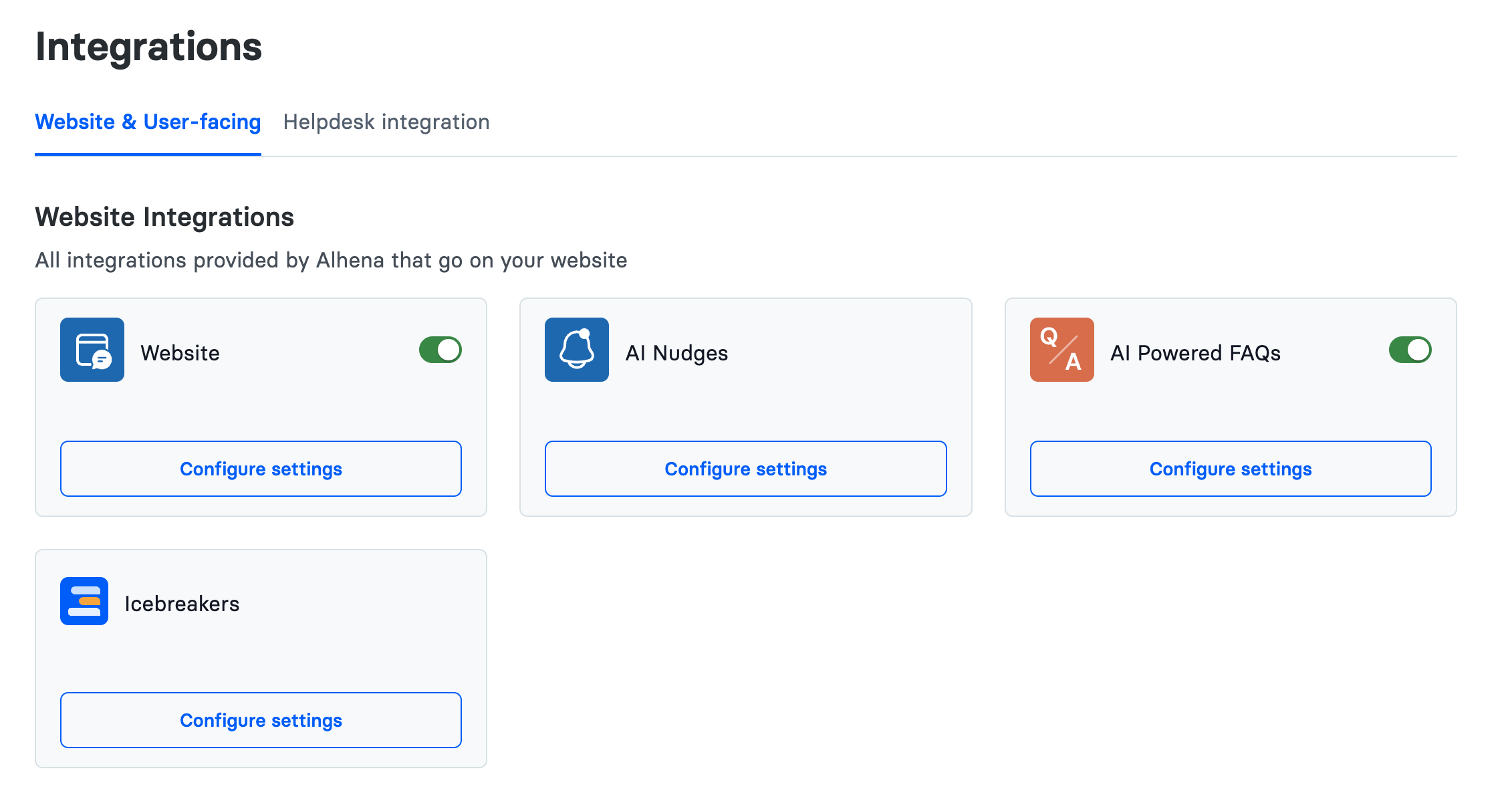
#### Step 1: Navigate to AI Nudges Settings

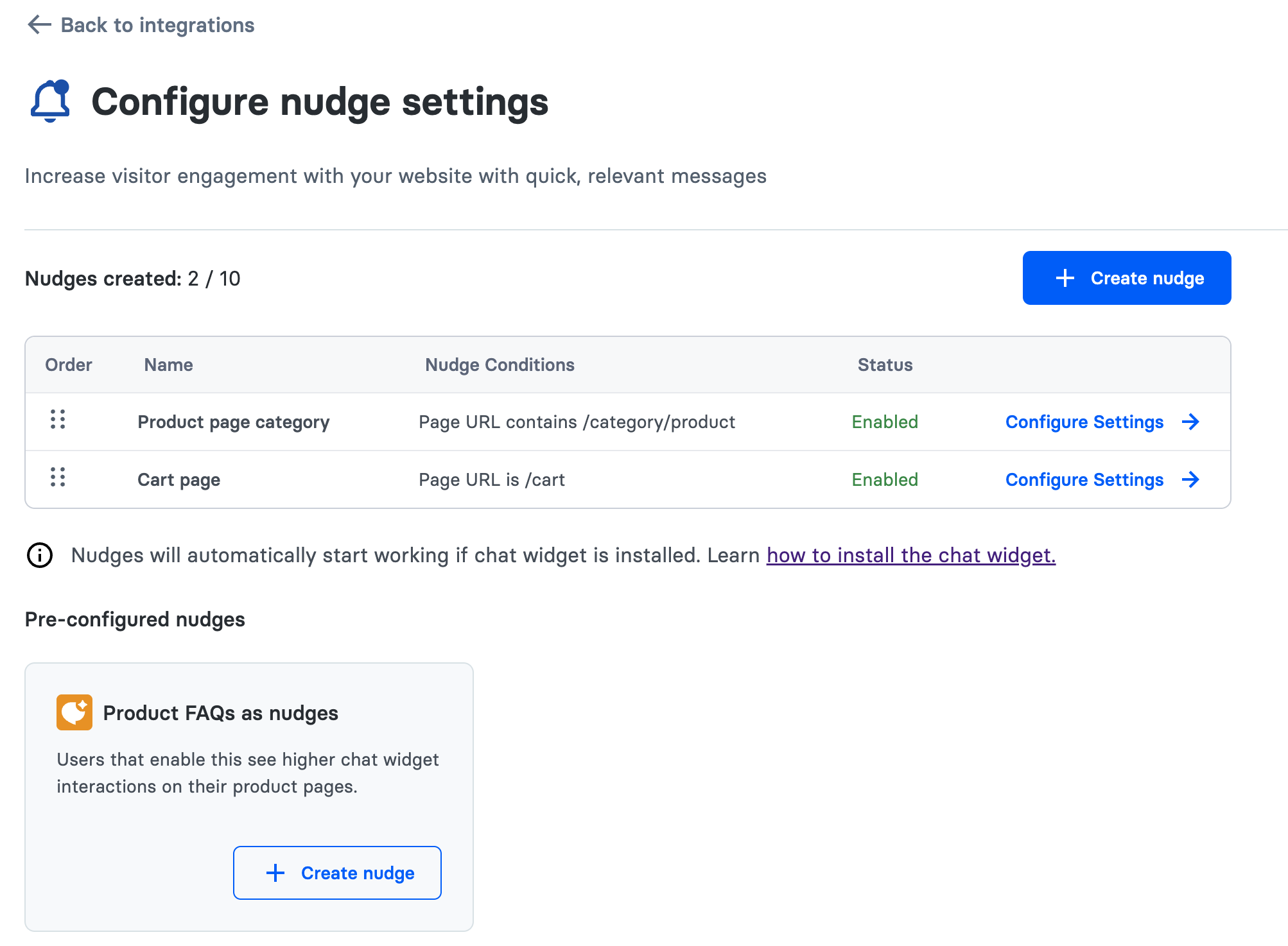
Go to:\
`Settings → Integrations → AI Nudges`

<figure><img src="/files/X3FMrroOJIhCPCWDYGeP" alt=""><figcaption><p>[AI Nudges - Configure settings in Alhena Dashboard]</p></figcaption></figure>

***

#### Step 2: Configure Nudge Settings

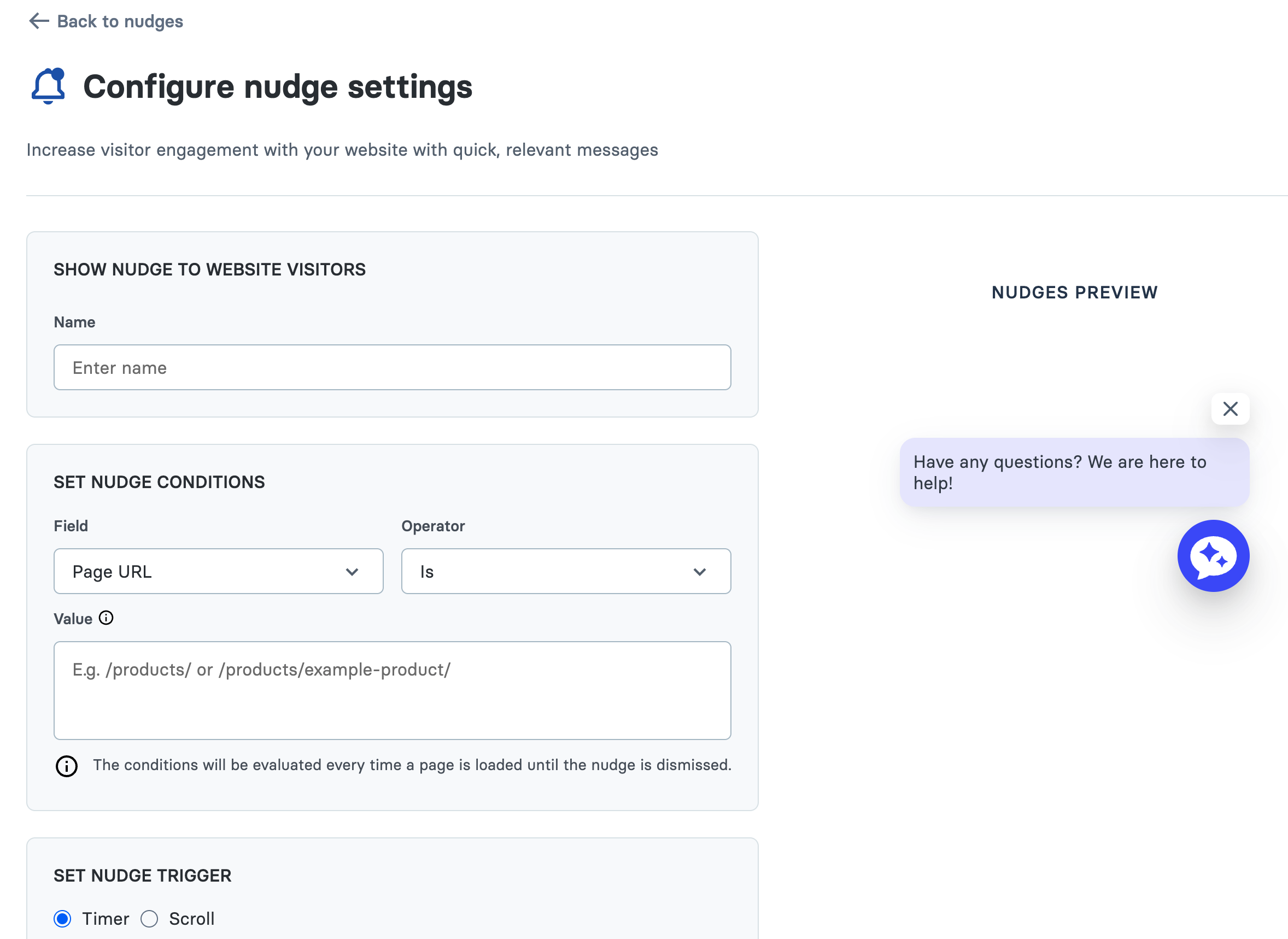
When creating or editing a nudge, you can define:

* **Nudge Conditions**
  * Match by page title or URL.
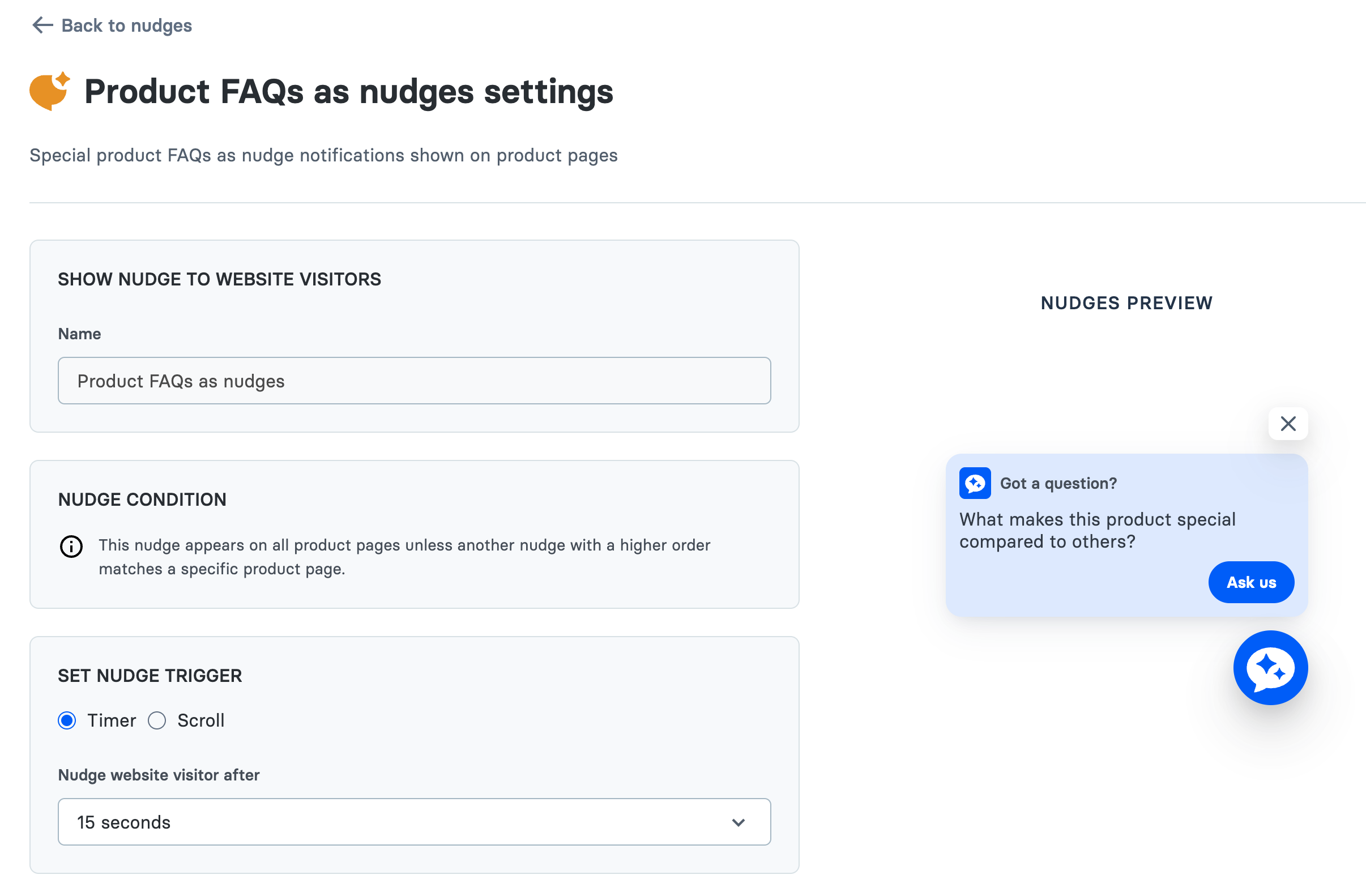
  * For *Product FAQs Nudges*, these auto-apply to **all product pages** unless another specific nudge overrides with higher order.
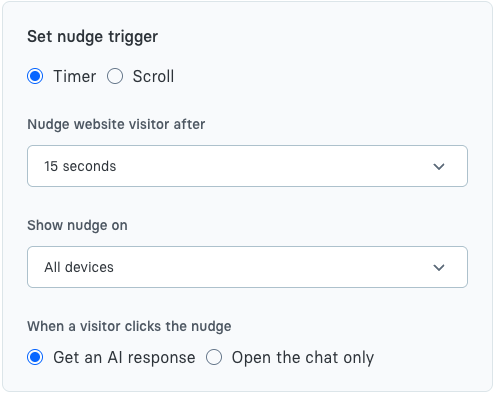
* **Triggers**
  * `Timer`: Display after a pre-configured delay (e.g., 5s).
  * `Scroll`: Trigger after user scrolls X pixels.
  * `Custom`: Control visibility programmatically with the [Website SDK JavaScript APIs](https://alhena.ai/docs/reference/website-sdk-javascript-apis):
    * `showNudge()`
    * `hideNudge()`
* **Nudge Animation Timing**
  * Define how long until the **next nudge** appears (e.g., 5s).
* **Preview Your Nudge**
  * Select a **Product URL** to test and preview FAQ nudges directly in the dashboard.

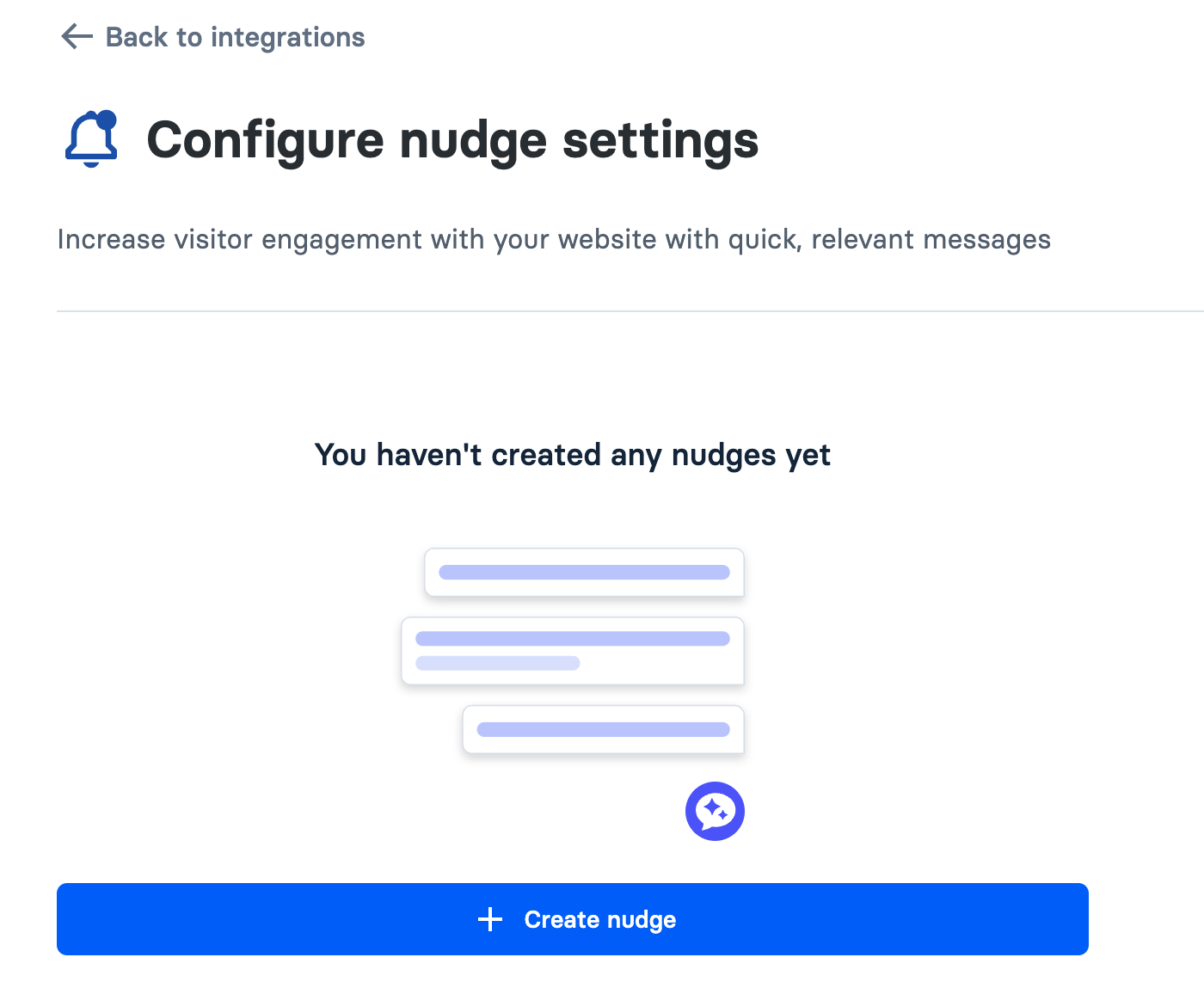
<figure><img src="/files/sMY5dukmTqDuaLzd8eJ9" alt=""><figcaption><p>[When nudge is not created yet - Create nudge button]</p></figcaption></figure>

<figure><img src="/files/9gsqlIMxaZRlk9J45xiY" alt=""><figcaption><p>[Create nudge configuration settings]</p></figcaption></figure>

<figure><img src="/files/IEiceRrIYMWmwTm4zPGR" alt=""><figcaption><p>[If company have products - we show Product FAQs as nudges]</p></figcaption></figure>

<figure><img src="/files/KVlJjCLq7zwudZLsbalc" alt=""><figcaption><p>[Product FAQs as nudges settings]</p></figcaption></figure>

***

### Nudge Button 🆕

All nudges now include a **Nudge Button** inside the chat widget.

* ✅ Provides a **clear CTA** (e.g., *“Ask us”*).
* 🎯 Makes nudges instantly actionable for the visitor.
* 🛒 For **Product FAQs Nudges**, the button directly connects to product-related support.

<figure><img src="/files/Ad2IEIzfPguM18nHeAae" alt=""><figcaption><p>[Nudge button text]</p></figcaption></figure>

***

### Handling Multiple Nudges

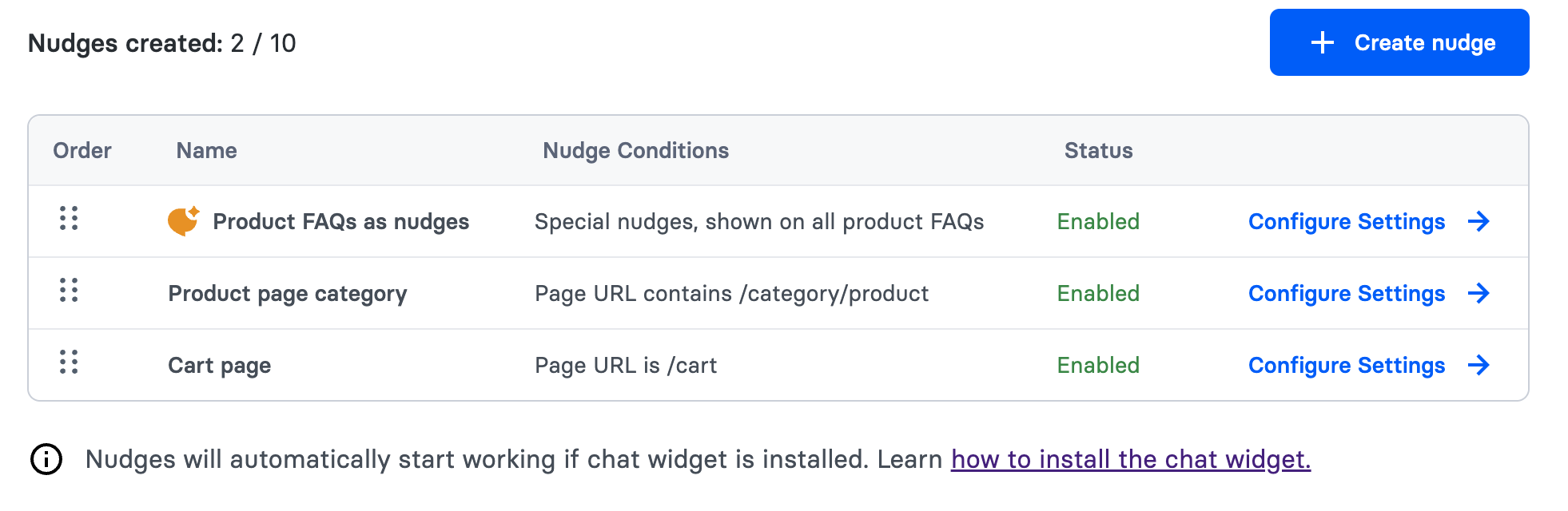
* **First Match Order:** If multiple nudges match, only the first one (based on order) will display.
* **Reordering:** Drag & drop nudges in the dashboard to set priority.

<figure><img src="/files/SMfp9tLYIvD0PShBJnui" alt=""><figcaption><p>[Ordering of nudges]</p></figcaption></figure>

***

### Dismissal & Persistence

* **Persistent Dismissal:** Once dismissed, the same nudge won’t appear again unless cookies are cleared or session timed out.
* **Widget Interaction:** Nudges won’t appear if the user:
  * Already opened the chat widget.
  * Is in an ongoing conversation.
  * Clicked or dismissed the nudge.

***

### Custom Nudge UI (Developer) 🛠️

Prefer to render nudges with your own design instead of Alhena's built-in UI? The [Website SDK](/docs/developer-reference/website-sdk.md) exposes the standard nudge logic so you can build a fully custom launcher and nudge:

* Set `hideDefaultUI: true` to hide the built-in launcher button and nudge.
* Listen for the [`nudge:loaded`](/docs/developer-reference/website-sdk/events.md#nudge-loaded) and [`nudge:triggered`](/docs/developer-reference/website-sdk/events.md#nudge-triggered) events to populate and reveal your own UI.
* Call [`clickNudge()`](/docs/developer-reference/website-sdk/javascript-api.md#clicknudge) to run the same click behavior as the built-in nudge.

Targeting, triggers, and dismissal are still managed here in the dashboard. See the [Custom Launcher & Nudge UI example](/docs/developer-reference/website-sdk/examples/custom-launcher-nudge.md) for complete code.

***

### AI-Generated Nudges 🪄

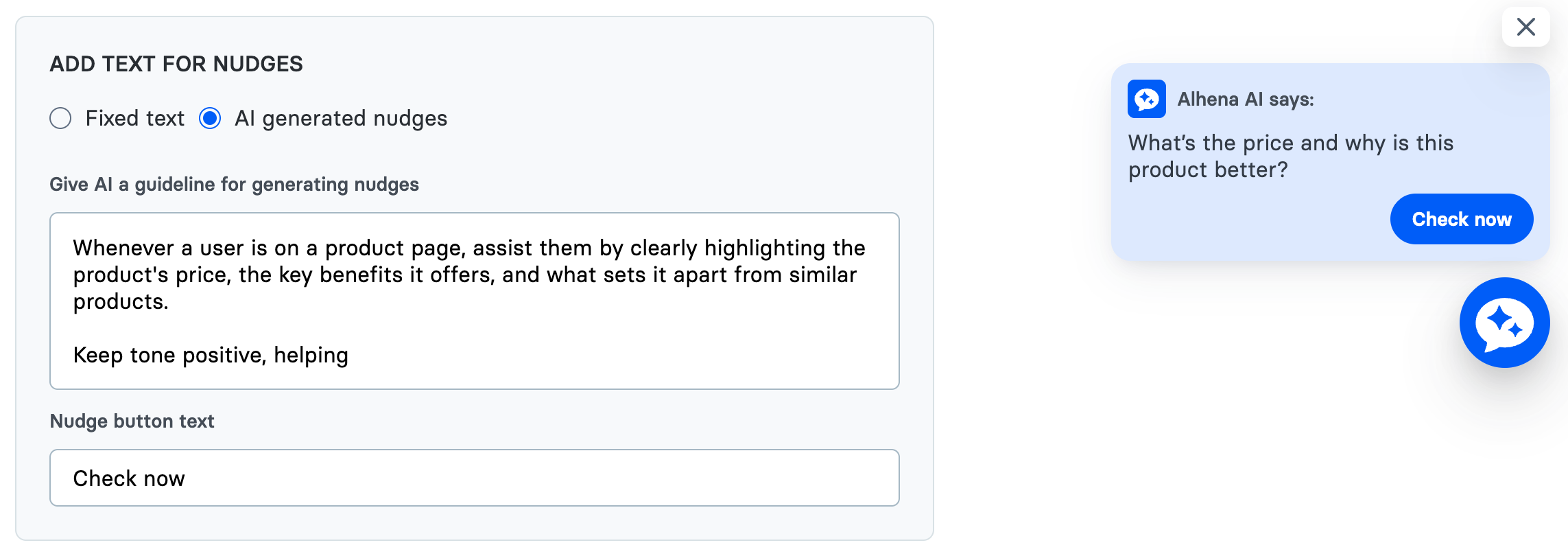
Instead of static text, enable **AI Nudges** to auto-generate prompts dynamically:

* Provide **guidelines** (tone, style, call-to-action).
* AI will generate unique nudge text based on the **page title and content**.
* You can preview generated nudges by selecting **sample product URLs**.

<figure><img src="/files/2P8KKF4S3UB84KSr7cLd" alt=""><figcaption><p>[AI generated nudges]</p></figcaption></figure>